
*If you're returning from a break in setting up your tournament's website:
1. Go to your tournament's URL and log in.
2. Click Administration
3. Click Events Offered.
Here is where you'll really start to see your tournament's website taking shape, because you'll see the events go up. We'll start out by clicking on Add Event.
This will take you to a page where you'll enter several pieces of information about each event.
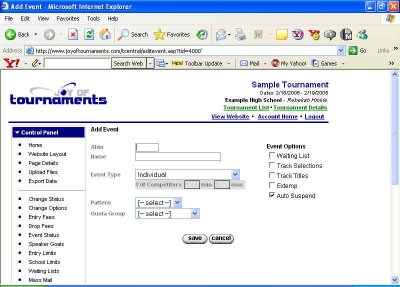
The first blank we need to fill in is the abbreviation for the first event you want to enter. For example, if we're starting with C-X Debate, we'd type CX in the Abbr box. You may choose any abbreviation you like for each event. Maybe you're new to this whole tournament thing and are unsure of commonly-used abbreviations. If that's the case, you're welcome to refer to the following list to get some ideas, but you're also welcome to chose your own abbreviations according to your own taste.
| PO | Poetry | PR | Prose |
| DA | Duet Acting | DI | Dramatic Interp |
| DIMP | Duet Impropmtu | HI | Humorous Interp |
| FX | Foreign Extemp | DX | Domestic Extemp |
| IMP | Impromptu | OO | Original Oratory |
| SC | Student Congress | PF | Public Forum |
| CX | C-X Debate | LD | L-D Debate |
| NCX | Novice C-X Debate | NLD | Novice L-D Debate |
| IX | International Extemp | DUO | Duo Interp |
| USX | US Extemp | EXP | Exposotory |
| VCX | Varsity C-X Debate | VLD | Varsity L-D Debate |
| CCX | Championship C-X | CLD | Championship L-D |
| USX | US Extemp | EXP | Exposotory |
| EC | Extemp Commentary | ||
Once you've decide on an abbreviation and typed it in, we'll move on to the Name box. In this box we just want to type out the name of the event.
Below that you'll see a box labeled Event Type. Click on the down arrow to the right there, and you'll see a list of choices for decsribing the event. The descriptions are fairly self-explanatory, so you'll probably know which one to choose right away.
In the next box below that, labeled Patterns, we need to choose the pattern (or section, or flight) of events to which this one belongs. The choices you'll see come directly from what you entered earlier. Use the down arrow to see your choices, and click on the correct one.
In the last box, called Quota Group, we'll use the down arrow to choose the quota group to which this event belongs. Again, the choices you'll see come directy from what you entered earlier to be the quota groups for your tournament. Keep in mind the following details:
Now, the last step to this process is to look over at the list of choices to the right there entitled Event Options. You may check any of the five boxes that apply to this event.
Once you've made any appropriate selections from this list, you're ready to click Save. You will then be returned to the prevous page. One event down! Now we'll simply repeat that process for all the remaining events in your tournament.
Would you like to see what some other coaches have done before you enter all your events? Please click on the following sample tournaments to see how other coaches set up the events on their websites.
| Sample Tournament One | Sample Tournament Five |
| Sample Tournament Two | Sample Tournament Six |
| Sample Tournament Three | Sample Tournament Seven |
| Sample Tournament Four | Sample Tournament Eight |
Now that you have an idea of what you want to do, here's a quick review of how to
Add Events:
After you've entered all of your tournaments' events and clicked Save for the last time, you should be back at the page that lists each of your tournament's Patterns, Judge Quotas, and Events.

If you're ready to move on, let's Set Up Entry Fees.