*If you're returning from a break in setting up your tournament's website:
1. Go to your tournament's URL and log in.
2. Click Administration
The next limit you might wish to set on your tournament is a Group Limit.
Such a limit may have sounded like this in your invitation: "You may enter 10 CX teams, divided however you like between Varsity and Novice." The way this works is that we need to tell the website that there is a limit group called "CX", and then we'll tell the website to only allow a school to enter 10 teams in that group, which includes Varsity and Novice CX. Of course, this will work with any type of group you want to create and is not at all limited to CX.
At this time the first step of the Group Limits process is to notify the Joy of Tournaments staff that you plan to set group limits. The staff will enable the group limits feature for your website and let you know when you can move on with this process.
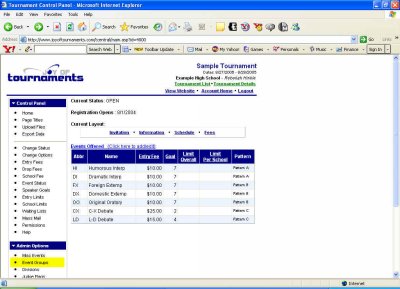
When you've received confirmation that you may proceed, click on Event Groups under Admin Options in the far left column.
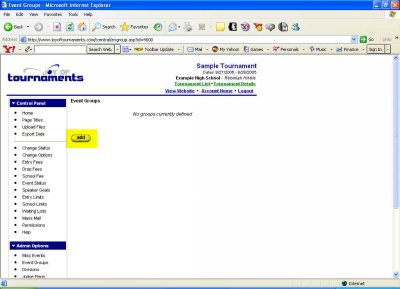
Now click on Add. You'll see a screen with some empty boxes we need to fill in. In the first box enter the name of the event group, for example, Extemp, CX, or LD. Then in the next box enter the maximum number of entries or teams each school is allowed to enter in the entire group.
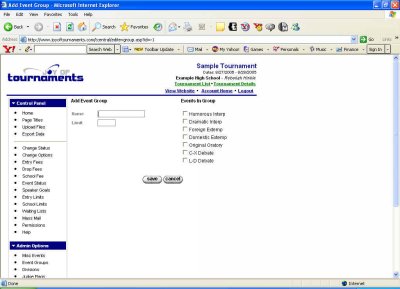
On the right you'll see a listing of all events. Click on the events you wish to be included in this group. When you've completed these steps, click Save.
You'll be returned to the previous page, which now lists the group you've just entered. If you wish to create another group, click Add again. You may repeat this process as many times as is necessary to enter all groups that will have entry limits at your tournament.
When you're satisfied with the group limits you've entered, you may wish to set up Waiting Lists for events that fill up at your tournament. If you want to return to the Main page of your website, click View Website at the top right of the page.
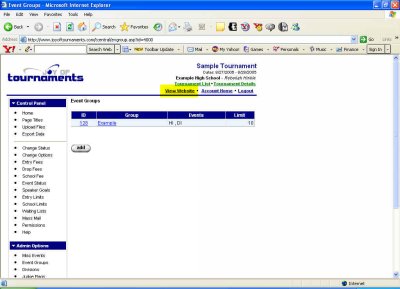
From there you'll need to click Administration if you plan to further edit your web page.